

How to Move Apps to SD Card on Android 4.x and Earlier
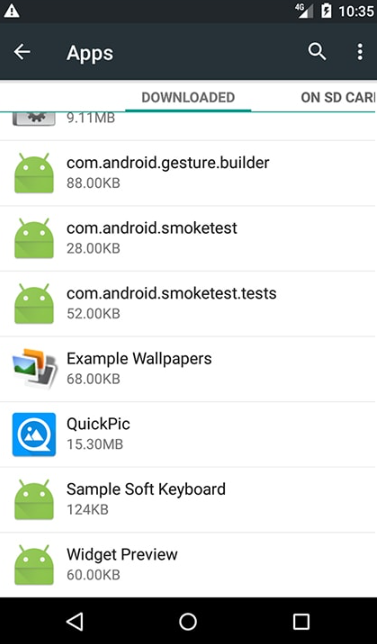
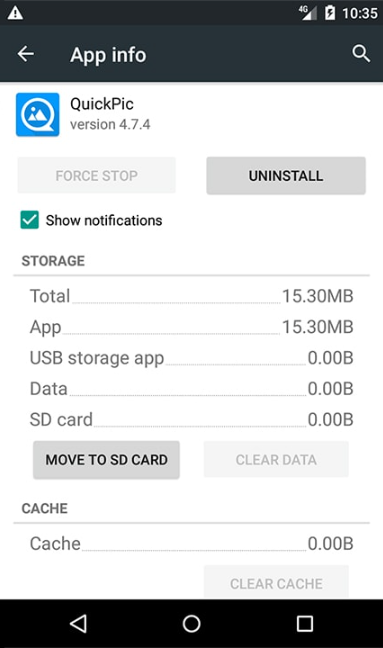
On Android 4.x and earlier, go to Settings > Applications, find the app and tap Move to SD card. On these older versions, only a limited number of apps support this.
How to move an app to the memory card
- Open Settings and go to Applications.
- Find the app you want to move.
- Tap Move to SD card.

Why is the Move to SD card button greyed out?
On Android 4.x (KitKat, Jelly Bean, Ice Cream Sandwich) and earlier, the number of apps you could move to the memory card was very limited, because Google was not keen on moving apps to the memory card. Some developers still built their apps to support it, but in most apps the Move to SD card button is inactive.
Widgets: if you are using a system older than Android 4.x and want to use an app's widgets, keep that app on the phone's internal storage. Widget support only works with apps that run from internal storage.
Was this article helpful?
Thanks for your feedback!
Sorry about that. Our team can help you directly.
Contact support