

Move Button Not Showing? How to Move Apps to the SD Card
On this page (4)
If the CHANGE (move) button doesn't appear in an app's storage settings, your phone maker may have disabled the feature, your memory card may be too slow, or your Android version may not support it. You can usually make the button appear through Developer options or with root access.
How moving an app normally works
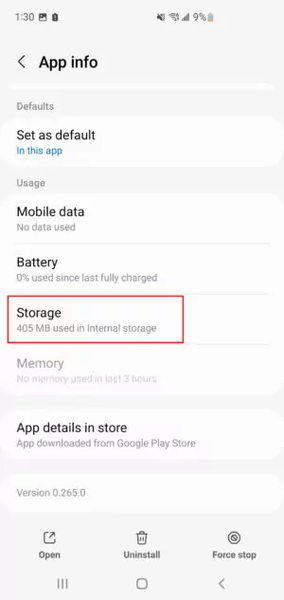
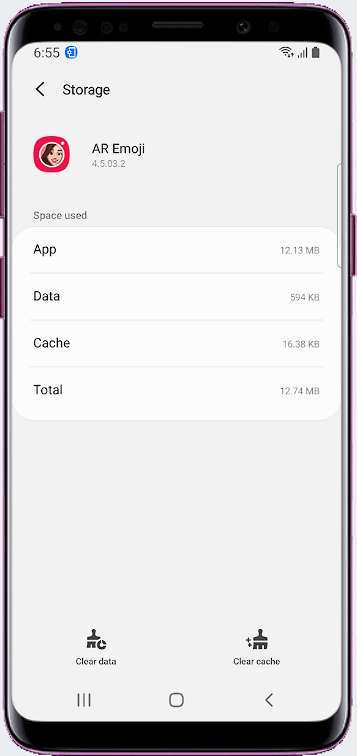
- Open Settings and go to the Apps section.
- Select the app you want to move.
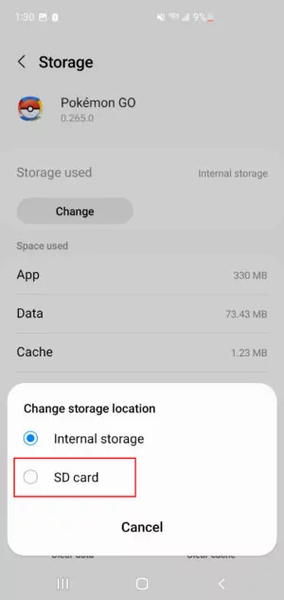
- Tap STORAGE.
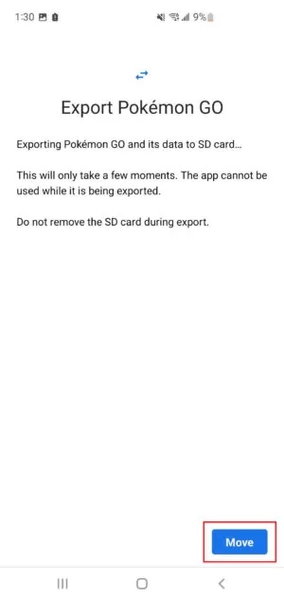
- Tap CHANGE to move the app to the memory card.
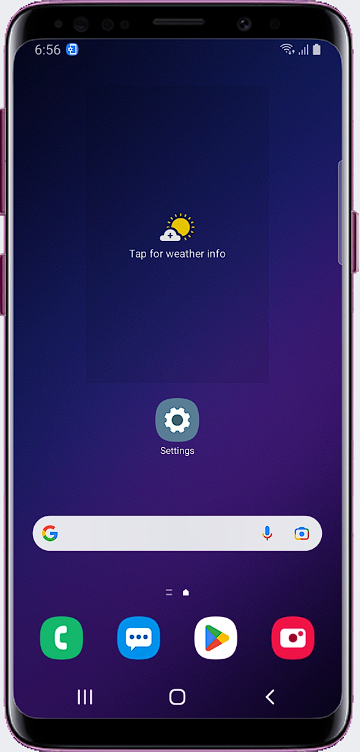
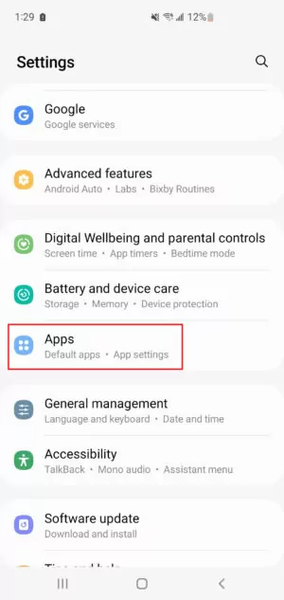
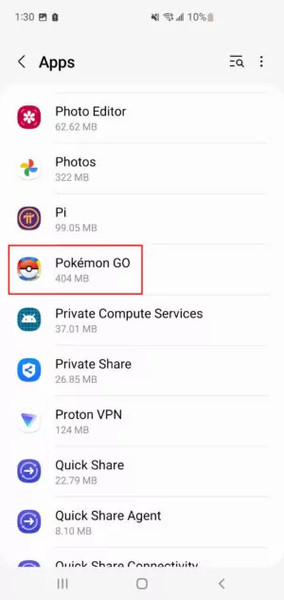
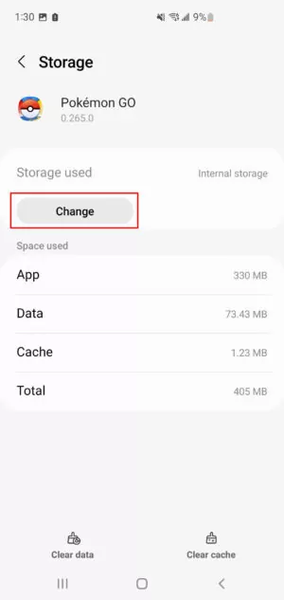
Why the move button may be missing
If you can't see the CHANGE button, one of the following is usually the reason:
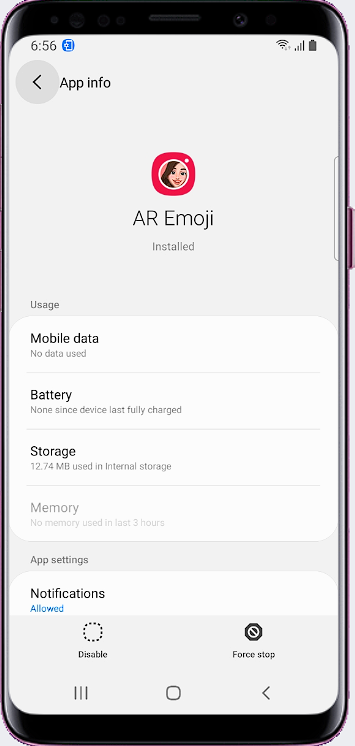
- Your phone company (manufacturer or carrier) may have disabled this feature.
- Your memory card's speed is not enough.
- Your operating system does not support this feature.
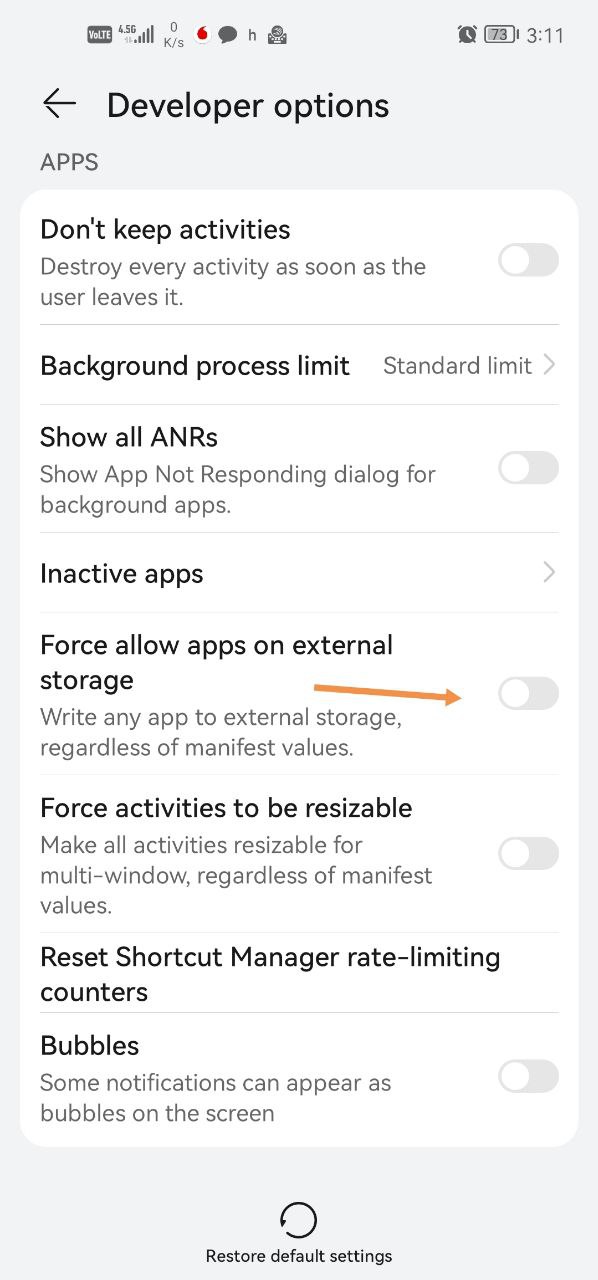
Method 1: Enable "Force allow apps on external" in Developer options
Turning on this option in Developer options can make the move button appear.
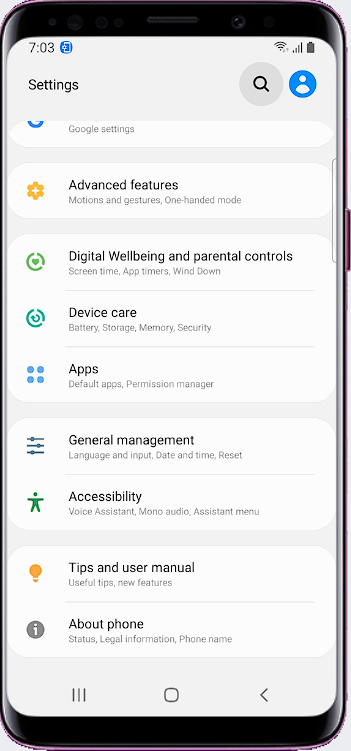
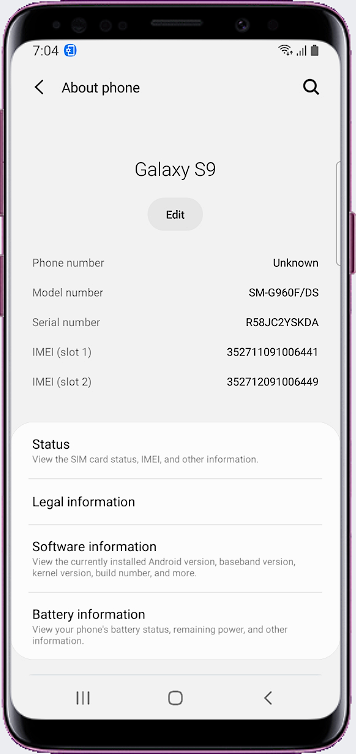
- Open Settings and go to About phone.
- Open Software information.
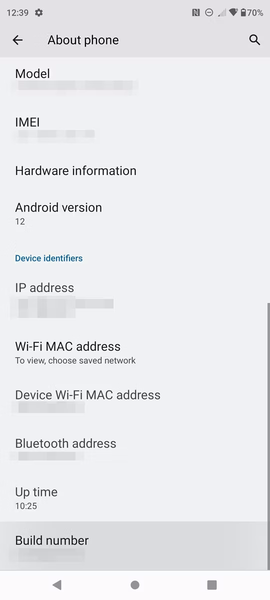
- Quickly tap Build number 4 times. Developer options will be enabled.
- Open Developer options and turn on Force allow apps on external.
- Go back to the app's STORAGE screen and tap CHANGE.
Menu names can differ slightly by phone brand and Android version. If Developer options don't open after 4 taps, keep tapping Build number until you see a confirmation message.
Method 2: Root your phone
The second way to make the move button appear is to give the phone root permission. You can learn how from this video: https://www.youtube.com/watch?v=96KwseujMfI
Rooting is an advanced procedure. Back up your data before you start.